2010-06-30

NTFS Cluster Size

When formatting a partition for SQL Server data, it is recommended by storage vendors, MVPs and other that the allocation unit size should be the largest size possible. For NTFS this means 64 KB. Often the DBA is called in after the server is build, installed and configured, but I still want to confirm the allocation unit size. This can be done bu the command-line tool FSUTIL (%SystemRoot%\system32\fsutil.exe), and wrapping a generic command-line statement in PowerShell gives me the value itself to be viewed or used by the automation.
When using FSUTIL, the allocation unit size is typically called NTFS Cluster Size, and is named "Bytes Per Cluster". On newer Windows installations you need to execute FSUTIL with administrative privileges.

function Get-NtfsClusterSize {
param ( [char[]]$driveLetter = 'c' )

 $driveLetter | ForEach-Object {
  if ( Test-Path "$($_):" ) {
   $cs = New-Object PSObject
   $cs | Add-Member -MemberType NoteProperty Drive $_
   # Get 7th line of output from FSUTIL
   $cs | Add-Member -MemberType NoteProperty Size (fsutil fsinfo ntfsinfo "$($_):")[7].split()[-1]
   $cs
  }
 }
}

The function can be called with one drive letter as parameter value.
Get-NtfsClusterSize c

Or with several drive letters as parameter value.
Get-NtfsClusterSize c,h

The output values can be referred as object attribute values and on implicit drive reference.
$clusterSize = Get-NtfsClusterSize
$clusterSize.Drive
$clusterSize.Size


I find it a rather cumbersome way to get a simple value, but by using WMI it can be done much simpler.
$wql = "SELECT BlockSize,DriveLetter,Label FROM Win32_Volume WHERE FileSystem='NTFS'"
Get-WmiObject -Query $wql -ComputerName '.' | Select-Object DriveLetter,Label,BlockSize | Format-Table -AutoSize


Reference
SQLCAT: "Disk Partition Alignment Best Practices for SQL Server"
Brent Ozar: "Ten Things DBAs Need to Know About Storage"
Chad Miller: "Disk Alignment Partitioning: The Good, the Bad, the OK and the Not So Ugly"
VistaForums: "Getting the 'cluster size' of your hard disk?"
MSDN Library: "Win32_Volume Class"

Backlog
Get the NTFS Cluster Size of a Mount Point.

New Mail shortcut

This is a handy one-click shortcut for a new Outlook mail.
"C:\Programmer\Microsoft Office\Office14\OUTLOOK.EXE" /c ipm.note

I have altered the shortcut ikon to distinct it from a Outlook shortcut. The example to the right is from a Danish Windows XP.
The shortcut is placed in the Quick Start toolbar with a helpfull comment.

2010-06-08

Cycle SQL Server Errorlog

The standard SQL Server Errorlog has six generations and is recycled implicit by a service restart.
This might be an issue when the database instance Login auditing is „Both failed and successful logins“ (Full), because the Errorlog will contain 100000+ entries.
I have several times seen more than a million entries.
A Errorlog of this size it takes some time to open in SQL Server Management Studio.
You could „cheat“ by opening it in a editor on a UNC path. This could require an editor that can handle a file larger than 1 GB.

With only six generations of the Errorlog, you will experience to loose the last usefull Errlog when the instance is restarted a handfull times. This will happen when a patch is failing, power blackout or another unpleasent event.
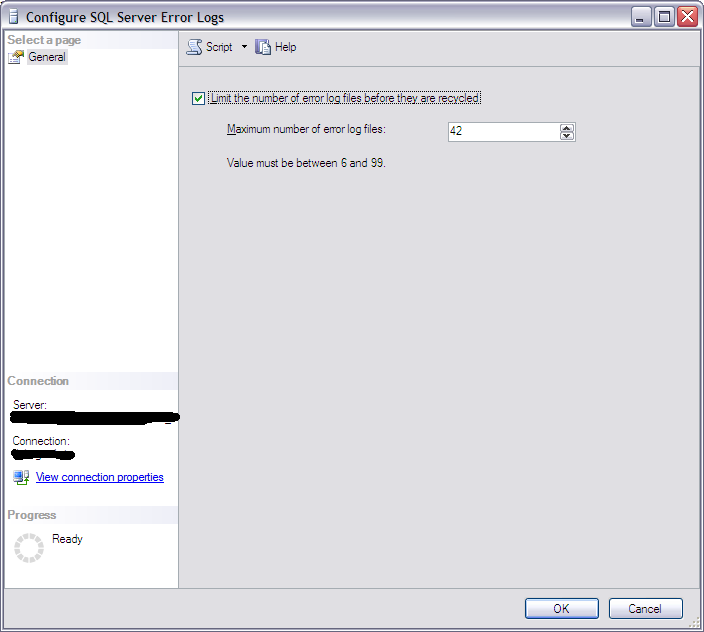
Configure SQL Server Error Logs.
To make the Errorlog available I have increased the number of generations.
This can be done using SQL Server Management Studio by expanding the database instance in the Object Explorer and expanding the „Management“ section. Right-click on „SQL Server Logs“ and click „Configure“.
Then enter the number of Errorlog generations (see figure „Configure SQL Server Error Logs“).

The number of Errorlog generations can not be altered by sp_configure or an ALTER statement, but in the Registry.

To make the Errorlog available I have also sheduled a recycle every day at 23:59:30. Recycling at this time gives the Errorlog a timestamp matching the day it contains log entries from.

The two tasks above can be done using this T-SQL script:
EXECUTE [master].[sys].[xp_instance_regwrite]
@rootkey = N'HKEY_LOCAL_MACHINE',
@key = N'Software\Microsoft\MSSQLServer\MSSQLServer',
@value_name = N'NumErrorLogs',
@type = N'REG_DWORD',
@value = N'42';
GO

DECLARE @sa_name sysname = ( -- Name of 'sa' account in hardended installation
SELECT [server_principals].[name]
FROM [master].[sys].[server_principals]
WHERE [server_principals].[principal_id] = 1
);
DECLARE @jobId BINARY(16);
EXECUTE [msdb].[dbo].[sp_add_job]
@job_name = N'MsSqlDbErrorlogCycle',
@enabled = 1,
@notify_level_eventlog = 2,
@notify_level_email = 2,
@notify_level_netsend = 2,
@notify_level_page = 2,
@delete_level = 0,
@description = N'Cycle SQL Server Database Engine Errorlog.
Created by Niels Grove-Rasmussen.',
@category_name = N'Database Maintenance',
@owner_login_name = @sa_name,
@job_id = @jobId OUTPUT;
EXECUTE [msdb].[dbo].[sp_add_jobserver]
@job_name = N'MsSqlDbErrorlogCycle';
EXECUTE [msdb].[dbo].[sp_add_jobstep]
@job_name = N'MsSqlDbErrorlogCycle',
@step_name = N'Execute MsSqlDbErrorlogCycle',
@step_id = 1,
@cmdexec_success_code = 0,
@on_success_action = 1,
@on_fail_action = 2,
@retry_attempts = 0,
@retry_interval = 0,
@os_run_priority = 0,
@subsystem = N'TSQL',
@command = N'EXECUTE [master].[dbo].[sp_cycle_errorlog];',
@database_name = N'master',
@flags = 4;
EXECUTE [msdb].[dbo].[sp_update_job]
@job_name = N'MsSqlDbErrorlogCycle',
@notify_level_eventlog = 2,
@notify_level_email = 2,
@notify_level_netsend = 2,
@notify_level_page = 2,
@delete_level = 0,
@description = N'Cycle SQL Server Database Engine Errorlog',
@category_name = N'Database Maintenance',
@owner_login_name = @sa_name;
DECLARE @schedule_id INT;
EXECUTE [msdb].[dbo].[sp_add_jobschedule]
@job_name = N'MsSqlDbErrorlogCycle',
@name = N'Schedule MsSqlDbErrorlogCycle',
@freq_type = 4,
@freq_interval = 1,
@freq_subday_type = 1,
@freq_subday_interval = 0,
@freq_relative_interval = 0,
@freq_recurrence_factor = 1,
@active_start_time = 235930,
@schedule_id = @schedule_id OUTPUT;


History

2010-06-08  First blog entry.
2013-11-19  Name of sa–principal in local variable.

2010-05-08

Installing SQL Server 2008 R2

On my private workstation (Windows 7 Ultimate x64) I first tried to in-place install the new SQL Server 2008 R2 (SQL2008R2), but it look like the installation collided with old installations of Visual Studio 2008. The last weeks I have upgraded Visual Studio and Office to 2010, but I have not before had problems by having them installed before installing SQL Server.
OK - I uninstalled all previous installed SQL Server and Visual Studio parts I could find in the Control Panel. Still no success.
This was beginning to be annoying, so I deleted all SQL Server and Visual Studio fils and folders. Hrmf - still the same error while installing SQL2008R2.

This morning I found the solution in the blog post "Rule "Previous releases of Microsoft Visual Studio 2008" failed" by Mark Smith at LessThanDot.
The trick is to start the installation with the Windows Shell statement
setup.exe /ACTION=install /SkipRules=VSShellInstalledRule

The installation finished with success and I can continue on working with the latest version of SQL Server.

2010-03-20

SQL script file output using SQLPS

To automate tasks I often need to execute one or more script files (*.sql). Usually I have used sqlcmd.exe, but I would like to convert to sqlps, as it seems to be the future of SQL Server automation according to Microsoft. That is at least my personal guess...

A test SQL script (SqlScript.sql) like this tests three ways of output. That is standard output by SELECT, event output by PRINT and error output by RAISERROR.
SET NOCOUNT ON;
SELECT @@VERSION AS [sql_version];
GO
PRINT N':: Hello world from PRINT';
GO
SELECT ':: Hello world from SELECT' AS [hello];
GO
RAISERROR( N':: Hello world from RAISERROR', 18, 0 ) WITH NOWAIT;
GO
SELECT ':: End of script.' AS [script_end];

The calling PowerShell script file is
& sqlcmd.exe -S "Titanium" -E -r1 -i "SqlScript.sql" > SqlScript.log 2>&1

After execution by SQL Server PowerShell (sqlps.exe) the log file is
sql_version                                                                                                                                                                                                                                                                                                
------------------------------------------------------------------------------------------------------------------------------------------------------------------------------------------------------------------------------------------------------------------------------------------------------------
Microsoft SQL Server 2008 (SP1) - 10.0.2531.0 (X64)
    Mar 29 2009 10:11:52
    Copyright (c) 1988-2008 Microsoft Corporation
    Developer Edition (64-bit) on Windows NT 6.1 (Build 7600: )
                                                                                                             
SQLCMD.EXE : :: Hello world from PRINT
At H:\Script Library\sqlps\Invoke-SqlCmd.ps1:14 char:2
+ & <<<<  sqlcmd.exe -S "Titanium" -E -r1 -i "SqlScript_1.sql" > SqlScript_1.log 2>&1
    + CategoryInfo          : NotSpecified: (:: Hello world from PRINT:String) [], RemoteException
    + FullyQualifiedErrorId : NativeCommandError

hello                    
--------------------------
:: Hello world from SELECT
Msg 50000, Level 18, State 1, Server TITANIUM, Line 2
:: Hello world from RAISERROR

script_end      
-----------------
:: End of script.

As the PRINT statement is a event, the placement of the PRINT output can vary.

Okay, I kind of cheated by still using sqlcmd.exe.
But this way I get the wanted output in the log file and in the right order. Also I get the features of PowerShell that I find much more powerfull than sqlcmd.exe or Windows Shell (cmd.exe).